Fortune Printouts with Python and ESC/POS
14 Sep 2026
At the end of a high-tech palm reading, I give the sitter a souvenir printout. The printout has a black-and-white image of their hand with the live visuals overlaid. I accumulate these printouts from reading palms all over the place – art walks, nightclubs, corporate events, house parties, and more! This post details some technical information about the printouts.
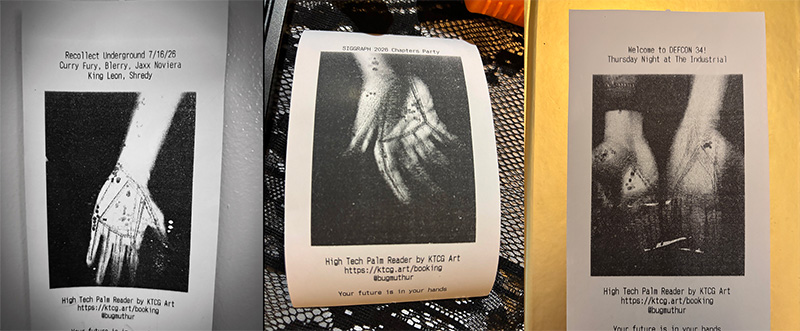
Left to right: Vending at Recollect LA Underground, busking on sidewalk outside SIGGRAPH 2026 Chapters Party, booked entertainment at DEFCON 34
My Printer
I use a NetumScan 8360 USB 80mm Thermal Receipt Printer, which I purchased from Amazon. I own two of them, one for each of my high-tech palm reading travel setups. Two is one and one is none!
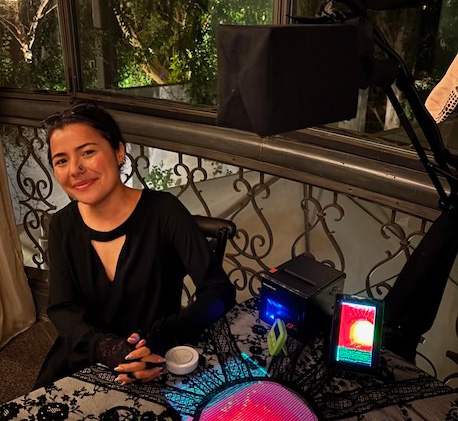
My printer visible on the reading table for a private party at Casalena in Woodland Hills.
58mm thermal printers are slightly more common, but I wanted to be able to print a larger image. Additionally, this printer has a cutter, which is very useful. My only complaint is that it emits a very loud beep if you open it while it is powered On. I am terrified of hearing that beep during one of my house party bookings. So far, that has not occurred, but I might disable the speaker out of paranoia.
Communicating with the Printer
My printer has drivers for MacOS and Windows, but not Raspbian, which is a fork of Debian (Linux). So I instead communicate with the printer over ESC/POS.
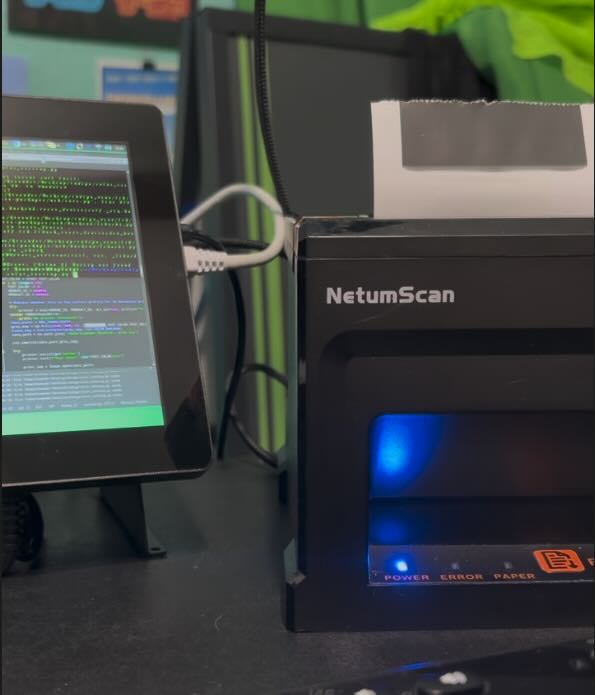
My printer and my Raspberry Pi 5
I use a virtual environment for all of my high-tech palm reader code. It was very simple to install usb and escpos libraries with pip3. To locate my printer, I use the escpos.Usb class. Instantiating a Usb object requires the following information
- Vendor ID
- Product ID
- Out endpoint
- A profile
The vendor and product ID can be found using lsusb. I ran the command, then plugged in the printer and ran it again. The new device was obvious:
Bus 001 Device 003: ID 0416:5011 Winbond Electronics Corp. Virtual Com Port
The vendor and product ID are 0x0416 and 0x5011 respectively.
To find an out endpoint, I ran lsusb again, this time in verbose mode with the optional flag -v. I looked for my device, and then Device Descriptor > Configuration Descriptor > Interface Descriptor > Endpoint Descriptor > bEndpointAddress. I saw that the endpoint was 0x01. I should note that the endpoints actually differ between my two printers. The other one is 0x03. I labeled each so that if I ever have to hot-swap at an event, I know what endpoint to change in my code.
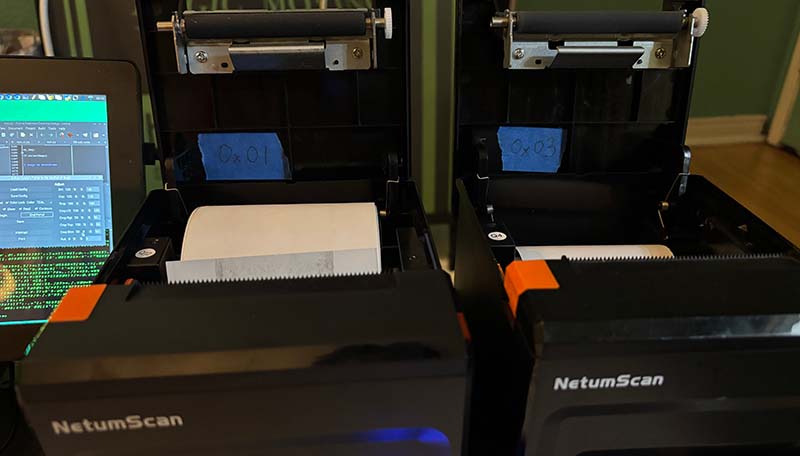
My printers with the endpoint labels in blue tape
Finally, I needed a profile. This was tough because my printer did not have a dedicated profile in the python-escpos documentation. I went with one for a printer whose features matched, which was TM-P80.
Putting all this together, my completed Usb class constructor was
printer = Usb(VENDOR_ID, PRODUCT_ID, out_ep=0x01, profile="TM-P80")I attempted to print something:
printer.text("Stay Fused!\n")And my console displayed a message indicating that I did not have sufficient permissions to communicate with the printer: USBError: [Errno 13] Access denied (insufficient permissions)
I followed this sacred post on PyLabRobot Forums to add my device to the usb rules. I have a screenshot below in case this forum goes down.
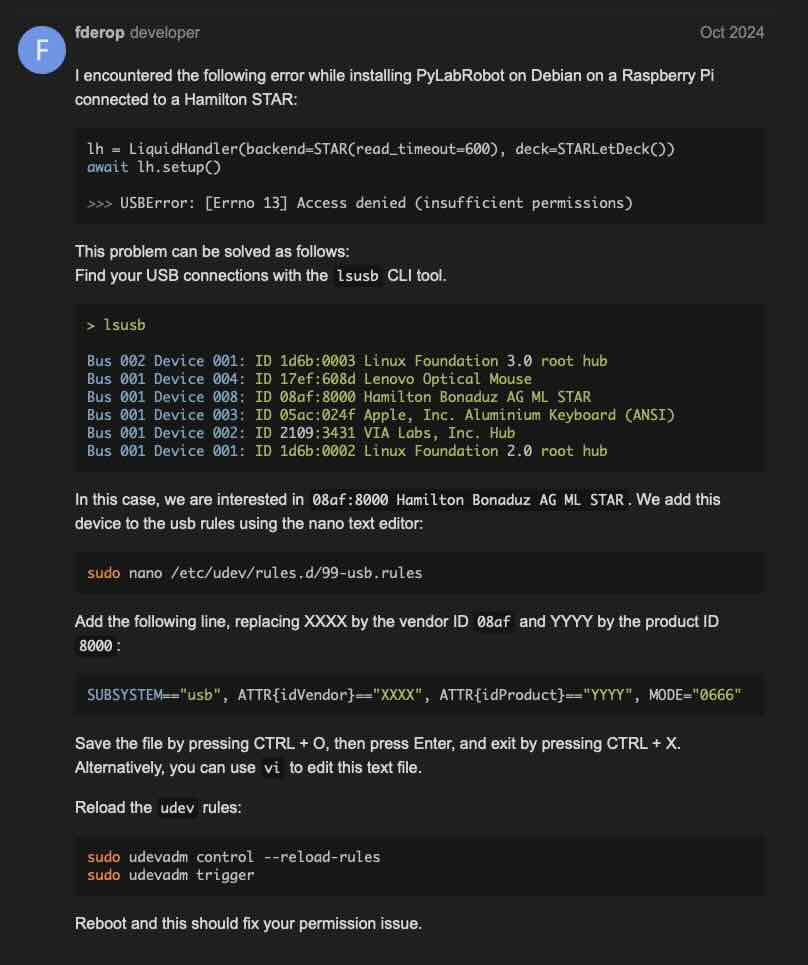
I was able to print afterwards.
Black Point
The thermal printer jams when you try to print areas of dense black. I wasn’t sure the darkest color I could reliably print, so I wrote a little script to print grey fields at descending values until the printer jammed:
import numpy as np
import usb
from escpos.printer import Usb, USBNotFoundError
import cv2
import os
from PIL import Image

TEST_COLOR = 105

# Decrement the color value by 5 and print. Eventually the printer will jam.
for i in range(0,20):
    TEST_COLOR -= 5
    VENDOR_ID = 0x0416
    PRODUCT_ID = 0x5011

    # Dubious whether this is the correct profile for my Netumscan printer, but it works
    try:
        printer = Usb(VENDOR_ID, PRODUCT_ID, out_ep=0x01, profile="TM-P80")
    except USBNotFoundError:
        print('No printer connected!')

    grey_img = np.full((640, 480, 3), [TEST_COLOR,TEST_COLOR,TEST_COLOR], dtype=np.uint8)
    save_path = os.path.join('/home/kteender/Desktop','grey.jpg')

    cv2.imwrite(save_path,grey_img)

    try:
        printer.set(align='center')
        printer.text(f"Test Color: {str(TEST_COLOR)}\n")

        print_img = Image.open(save_path)

        # The printer prints monochrome, so have to convert the image
        print_img.convert('1')
        printer.image(print_img,high_density_vertical=True)

        printer.text(f"Test Color: {str(TEST_COLOR)}\n")
    except usb.core.USBError:
        print('Error')
    finally:
        dev = usb.core.find(idVendor=VENDOR_ID,idProduct=PRODUCT_ID)
        dev.reset()
I ran my code, and found that 50 was the lowest black point the printer could print a color field of. Here is a video of my code running, with the jam at the end:
I then added two lines of Python to my printing code to covert the image from the visualizer to grayscale and raise the black point of the image to 100. I went with 100 instead of 50 to be safe.
#displayImage is an OpenCV image -- i.e. an numpy ndarry -- representing the image on the visualizer
grey_img = cv2.cvtColor(self.displayImage, cv2.COLOR_BGR2GRAY)
grey_img[grey_img <= 100] = 100
Finished Printing Code
The relevant printing code looks like this:
import numpy as np
import usb
from escpos.printer import Usb, USBNotFoundError
import cv2
import os
from PIL import Image

# The Vendor ID and Product ID I found in the previous step
VENDOR_ID = 0x0416
PRODUCT_ID = 0x5011

# Dubious whether this is the correct profile for my Netumscan printer, but it works
try:
    printer = Usb(VENDOR_ID, PRODUCT_ID, out_ep=0x01, profile="TM-P80")
except USBNotFoundError:
    print('No printer connected!')

# the variable 'img' is the black-point corrected image from my visualizer as a PIL Image object
# Ensuring that the image is rotated vertically
ri = (img.rotate(90, expand=True))

save_img = ri.convert('RGB')
# prints_directory is simply a string for a folder path that I temporarily save the print image to.
save_path = os.path.join(prints_directory,'printout.jpg')
save_img.save(save_path)

try:
    printer.set(align='center')

    # I like to put some information about the event at the top of the prinout. This is a made-up event.
    printer.text("Happy 40th Amanda\n")
    printer.text("Officially over the Hill, 07/22/26!\n")

    print_img = Image.open(save_path)
    print_img.convert('1')
    printer.image(print_img,high_density_vertical=True)

    # I like to put my own booking information on the printout
    printer.text("\n\nHigh Tech Palm Reader by KTCG Art")
    printer.text('\nhttps://ktcg.art/booking')
    printer.text('\n\nYour future is in your hands')
    printer.cut()
except usb.core.USBError:
    return
finally:
    dev = usb.core.find(idVendor=VENDOR_ID,idProduct=PRODUCT_ID)
    dev.reset()
In the Reading
As with nearly all of the technical aspects of this project, it is most interesting to look at the printouts as part of a live immersive entertainment experience. At first, I used a mouse to trigger the print event. Forcing the sitter to watch me click the ‘Print’ button in my control panel was so awkward that I stopped doing the printouts. Next, I bound the print event to a key.
# This code is in my main OpenCV loop
while self.cap.isOpened():
    k = cv2.waitKey(1) & 0xFF
    if k == ord('f'):
        self.save_and_print()
The keypress was perfect, but the keyboard was not. I did not like how much space it took up and how I had to look at it to trigger the event.
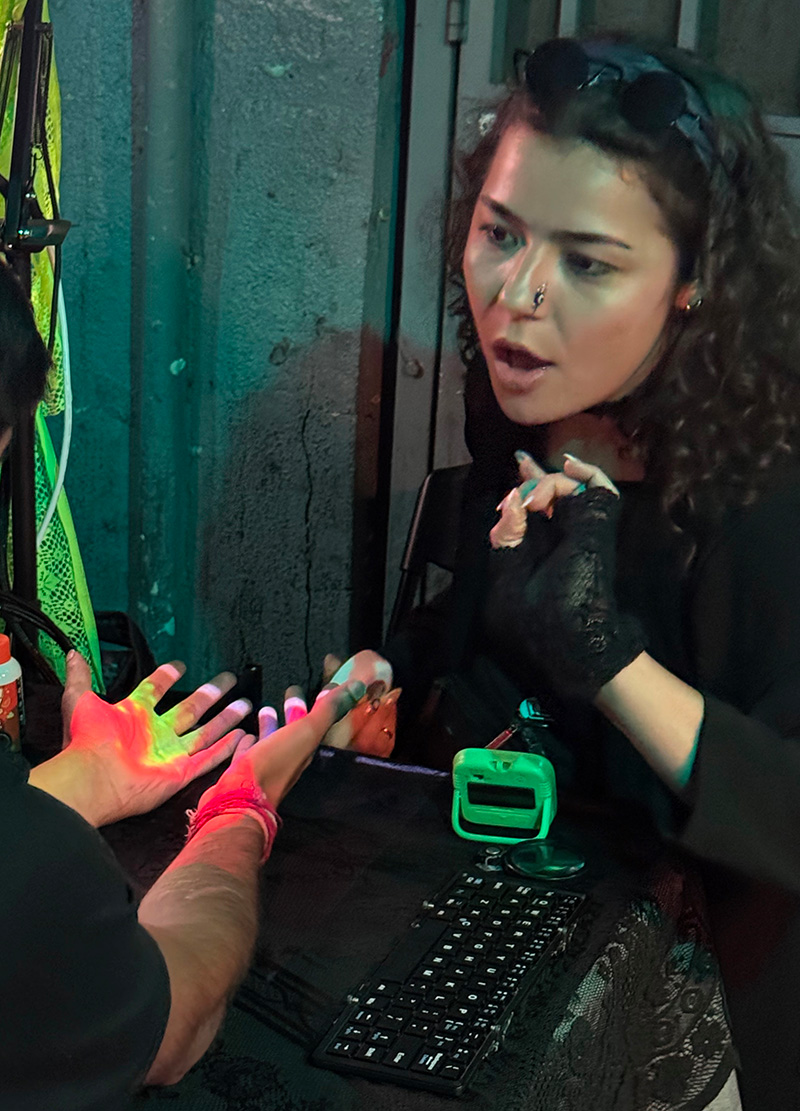
My travel keyboard was a little too large. Picture from a reading at Jungle Hollywood Nightclub.
I instead purchased two USB Bluetooth numpads and bound the print event to a number key. The numpad feels like a remote control. I can leave it on my lap and hit the ‘1’ key while maintaining eye contact with the sitter. I am very happy with my numpad solution, but I might build some sort of magic button one day.
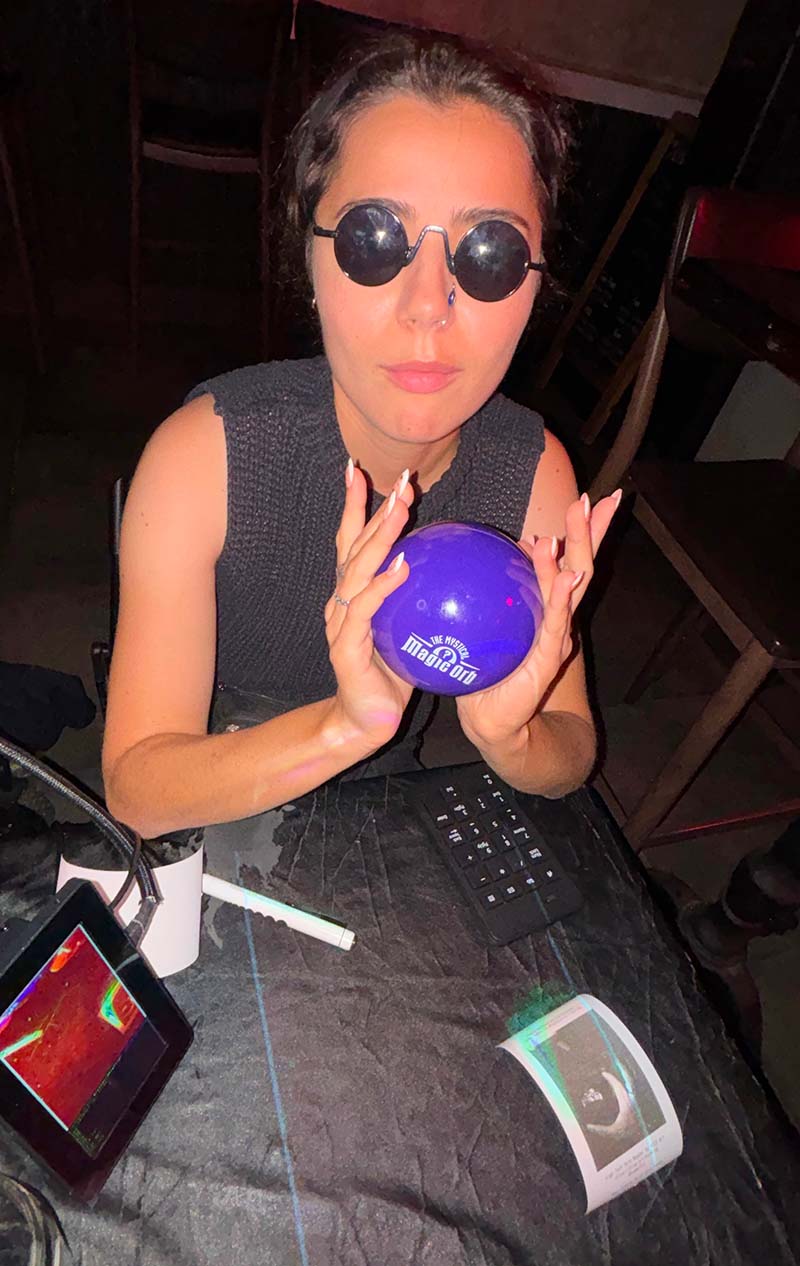
Reading table at the Grayson Bar DTLA. You can see my numpad by my left elbow.
The printouts have an obvious promotional and souvenir purpose. Additionally, they are a friendly signal that the reading is over. Often sitters want more time to explore a memory I hit upon or are curious about the technology. This is very natural and I am happy when my clients want more! The auditory queue from the printer, combined with my action of ripping the printout and handing it to my guest, is a nice note to end on.
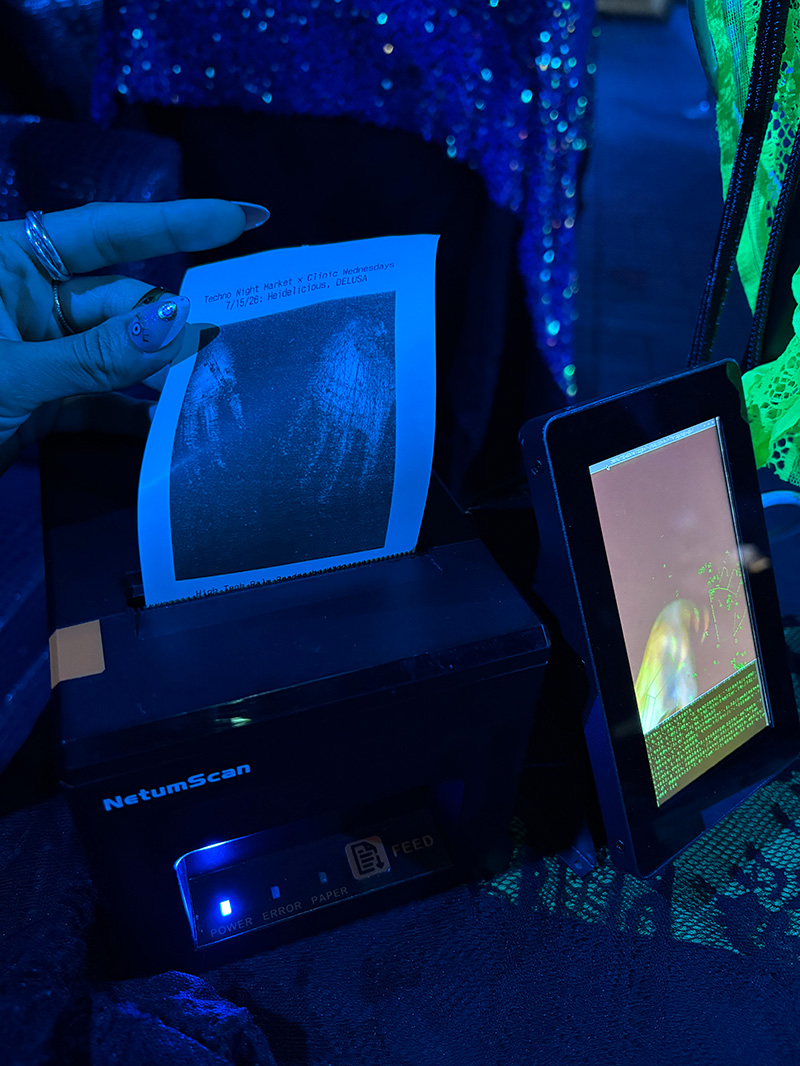
Ripping a printout.